The Web Interface

The Web Interface

Overview

The screen-scraper web interface allows you to administer aspects of the scraping process. This includes monitoring running scraping sessions, importing and exporting scraping sessions, and scheduling scraping sessions to be run on a periodic basis.
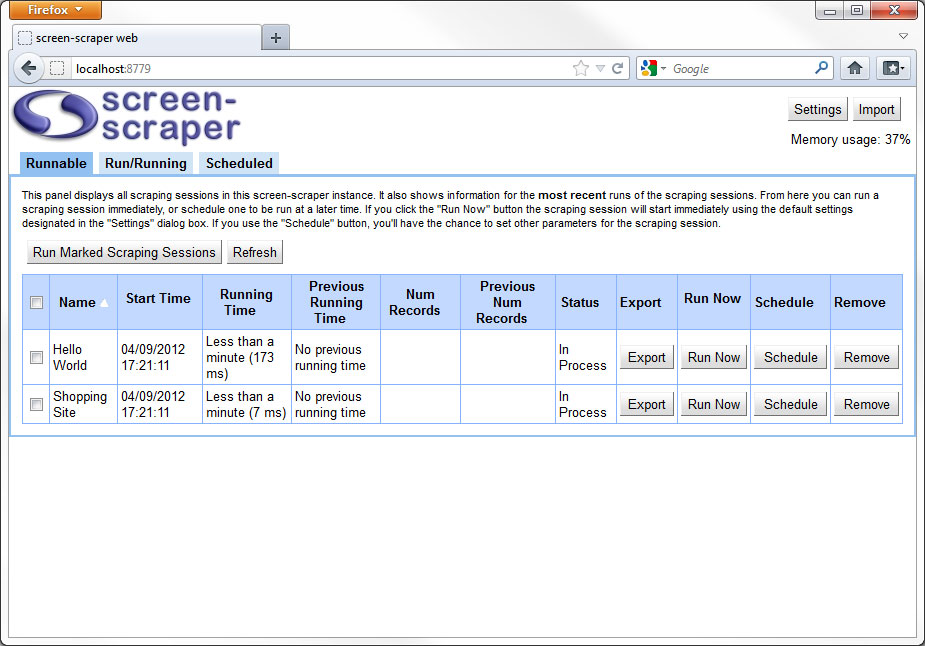
When screen-scraper is running in server mode, you can access the web interface on your local machine at the following URL: http://localhost:8779/web.htm. If you've changed the "Web/SOAP Server" port in the workbench, you'll need to use the port you designated there. Also, depending on the operating system you're running, instead of "localhost", you may need to use "127.0.0.1" or the IP address of the machine.

The same security settings that apply to accessing the screen-scraper server from a remote application apply also to the web interface. That is, you designate IP addresses of machines allowed to connect. For more information on this, see the "IMPORTANT NOTE" under Running screen-scraper as a server.

The web interface makes use of three primary tabs that allow to manage various aspects of the scraping process. We'll review each of them in detail.

Home

The "Runnable" Tab

This tab displays all scraping sessions loaded into the current instance. It will display basic information on scraping sessions that are currently running, as well as scraping sessions that have run in the past. It also allows you to start and schedule scraping sessions. By checking boxes on the left side you can start multiple scraping sessions simultaneously. Use the "Refresh" button to see the latest information on each scraping session. The various columns in the table are sortable by clicking the appropriate header. A description of each column follows:

  • Name: The name of the scraping session.
  • Start Time: The date and time the scraping session was last started.
  • Running Time: The amount of time the scraping session has taken to run. In the case of a scraping session that is currently in process, this number will update as you refresh the table.
  • Previous Running Time: The amount of time the scraping session took the last time it ran.
  • Num Records: The number of records the scraping session has extracted. This number is determined as your scraping session invokes the session.addToNumRecordsScraped method.
  • Previous Num Records: The number of records the scraping session extracted the last time it ran.
  • Status: Indicates the current status of the scraping session. Possibilities include "In Process", "Completed", and "Error".
  • Export: Allows you to export the scraping session, just as you would from the workbench.
  • Run Now: Runs the scraping session.
  • Schedule: Allows you to schedule the scraping session to be run. See below for more on scheduling scraping sessions.

The "Run/Running" Tab

This tab displays information on scraping sessions that are either currently running or have run in the past. You can use this table to compare run times, the number of records scraped, and also to monitor scraping session logs. After checking the boxes in the leftmost column you can stop or remove multiple scraping session records. Note that removing records for scraping sessions that have run doesn't remove the scraping sessions themselves, just the records related to the time when they were run. Here's a more detailed description of each of the columns:

  • Name: The name of the scraping session.
  • Start Time: The date and time the scraping session was last started.
  • Running Time: The amount of time the scraping session has taken to run. In the case of a scraping session that is currently in process, this number will update as you refresh the table.
  • Previous Running Time: The amount of time the scraping session took the last time it ran.
  • Num Records: The number of records the scraping session has extracted. This number is determined as your scraping session invokes the session.addToNumRecordsScraped method.
  • Previous Num Records: The number of records the scraping session extracted the last time it ran.
  • Status: Indicates the current status of the scraping session. Possibilities include "In Process", "Completed", and "Error".
  • Error: Indicates whether or not an error has occurred in the scraping session.
  • Error Message: In the event of an error, displays the corresponding message.
  • Peek Log: Pops up a box that allows you to monitor the scraping session log.
  • Stop Scraping: Stops the scraping session if it's currently running.

The "Scheduled" Tab

On this tab you can manage scraping sessions that have been scheduled to be run. See below for more on scheduling scraping sessions. The columns in the table are described below:

  • Scraping Session: The name of the scheduled scraping session.
  • Timeout: The amount of time in minutes the scraping session should be allowed to run. If this value is 0 or a negative number, the scraping session will not time out.
  • Date/Time: The date and time the scraping session is next scheduled to be run.
  • Session Variables: Any session variables that are to be passed to the scraping session when it runs.
  • Disable/Enable: Allows you to temporarily enable or disable the scheduled scraping session. If the scraping session is disabled, it will not run even if it's scheduled to do so.
  • Edit: Pops up a dialog box that allows you to manage the scheduled scraping session.
  • Remove: Removes the scheduled scraping session.

Scheduling Scraping Sessions

Through the web interface, you can schedule scraping sessions to be run at a future time, and set a frequency so that they'll run on an ongoing basis. To schedule a scraping session click the "Schedule" button under the "Runnable" tab. You can also alter the settings for an existing scheduled scraping session under the "Scheduled" tab.

When working with scheduled scraping sessions you'll do so via a separate tabbed dialog box. Each tab and it's corresponding parameters are described below.

In the "General" tab, you'll manage the following settings:

  • Scraping Session: The name of the scheduled scraping session.
  • Timeout: The number of minutes the scraping session should be allowed to run. If this value is blank, 0, or negative, the scraping session will not time out.
  • Session Variables: This is a list of session variables that will be passed to the scraping session when it is run.

The "Schedule" tab allows you to set the following:

  • Date: The calendar date when the scraping session is to run next. Click the box to bring up a graphical calendar from which you can select the desired date.
  • Time: The time of day when the scraping session is to run next. This should be a 24-hour (military) time.
  • Repeat Every: Use this to set the frequency with which the scraping session is to run. For example, if you enter "2" into the "Hours" box, the scraping session will run when it is scheduled, then be re-scheduled to run once again two hours from the time it started. If these boxes are left blank, the scraping session will run once and not be re-scheduled.

The "Thresholds" tab allows you to set percentages that can be checked when a scraping session is running in order to determine whether or not a scraping session differs significantly from the previous time it was run.

  • Time: A percentage of time whereby two runs of a scraping session may differ.
  • Record Count: A percentage of records scraped whereby two runs of a scraping session may differ.

Settings

The "Settings" dialog box simply allows you to set default values for scheduled scraping sessions. See the section above for details on each of the values.